Enable Remote Phonebook on SNAPBuilder
Enable Remote Phonebook on SNAPBuilder
Scope
Intended Audience: All End Users
This article outlines how to enable the remote phonebook in the Manager Portal and how to assign contacts to a device.
Requirements
- Office Manager Access to Manager Portal or Higher
Enable Remote Phonebook on SNAPBuilder
- Log in to the Manager Portal.
- Navigate to Users.
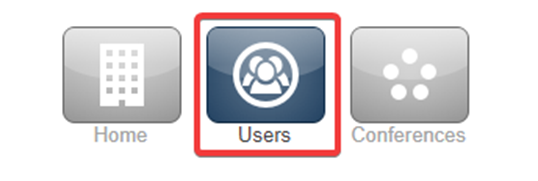
- Select a User, then select Phones.
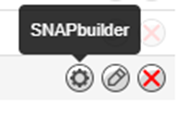
- Select Snapbuilder to the far right of the phone.
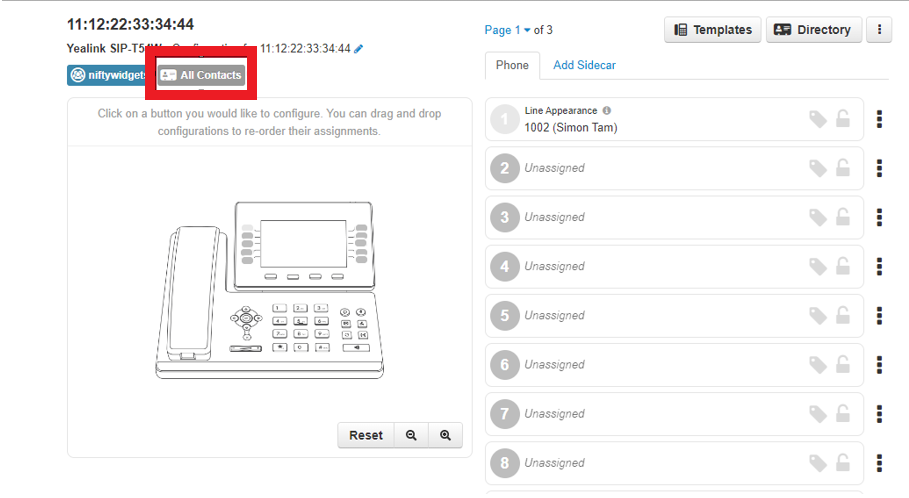
- On the SNAPBuilder Screen, click on the gray “All Contacts” button, which open the SNAPBuilder Directory.
- On the SNAPBuilder Directory screen, you can choose from the menu which contacts you would like synced to the phone. If you have users grouped into Departments
- You can sync specific departments as well.
- Make your selection of which Contact Type you would like, then click Done.
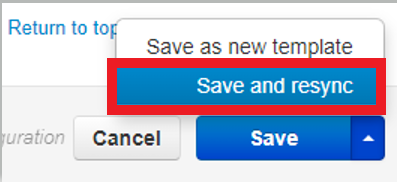
- At the bottom of the SNAPBuilder page, click the dropdown next to Save and click Save and Resync.
access [remote contact](https://docs.servantvoice.cloud/articles/snapbuilder/enable-remote-phonebook-on-snapbuilder/contact-us##search%5Fquery=remote contact) snapbuilder [enable remote phonebook on snapbuilder](https://docs.servantvoice.cloud/articles/snapbuilder/enable-remote-phonebook-on-snapbuilder/contact-us##search%5Fquery=enable remote phonebook on snapbuilder) [remote phonebook ](https://docs.servantvoice.cloud/articles/snapbuilder/enable-remote-phonebook-on-snapbuilder/contact-us##search%5Fquery=remote phonebook )